
How to Fix Filza (Jailed/Escaped) Crashing on iOS 11?


How to Fix Filza (Jailed/Escaped) Crashing on iOS 11?


Filza was never updated for iOS 11 firmware and acts iffy if you try to run on your Apple device. Here’s a quick fix for that issue.

You might experience crashes or get a white blank screen once you open Filza. In some cases, it can also cause the device to reboot.

How to Fix Filza (Jailed/Escaped) Crashing on iOS 11?

Here are a few fixes that you can try on your device.

Method 1 - Install modified ipapatchframework(recommended)
Step 1 Download the modified IPAPatchFramework here. This file is developed by 1GamerDev.

Step 2 Download FilzaJailed IPA file from here.

Step 3 Change its extension to .zip and extract this archive to any location with 7Zip. You must have a computer to do this.

Step 4 Navigate to this location – /Payload/Filza.app/Dylibs.


How to Fix Filza (Jailed/Escaped) Crashing on iOS 11?

Step 5 Replace the IPAPatchFramework file present here with the modified file from step 1. If you don’t know how to do that, simply drag the new file over there and confirm.

Step 6 Create a ZIP archive of this Filza_r_w folder again and add IPA extension at its end.

Step 7 Sideload this IPA file with Cydia Impactor. If you don’t have a computer or PC, leave a comment below and I will upload this file as soon as possible.

Method 2 -Download version 2
There are two different versions of FilzaEscaped file manager. You can try version 2 given here if the current version doesn’t work for you.

Some users report that version 2 is working just fine whereas version 1 is not. The developer is yet to provide a plausible reason as to why this happens.

Method 3 - reboot in non-jailbreak mode
As explained above, rebooting in non-jailbreak mode will certainly fix the crash issue. The exploit won’t run and Filza will get a chance to inject its own exploit on your device’s system.

Method 4 - downgrade electra to beta 6 
Coolstar disabled root access functionality with Filza in the latest beta.

So if you experience issues with the latest beta versions, downgrade it to beta 6.

How to Fix Filza (Jailed/Escaped) Crashing on iOS 11?


Method 5 - Use an SFTP client
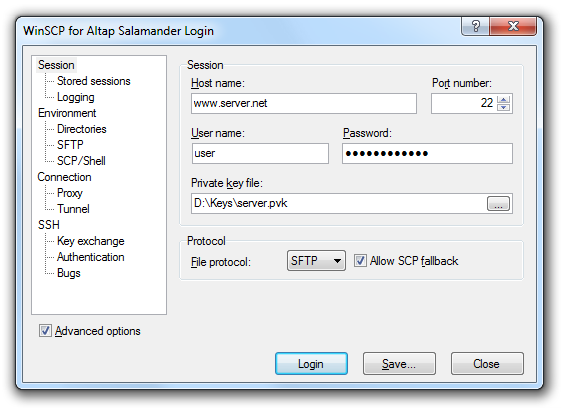
If you still can’t get it working, you must use a dedicated SFTP client. SFTP clients like WinSCP or Cyberduck are are easy to use and are more powerful than any iOS app could ever be.

These clients will allow you to access your whole root filesystem and copy or move files.

How to Fix Filza (Jailed/Escaped) Crashing on iOS 11?

This is more of an alternative, not a proper fix.

Thanks for visiting. For more latest updates or supports, follow us on Facebook or Twitter.

Comments

Popular posts from this blog

[Fix] Failed to Import Ringtone/Muisc/Video with 3uTools?

How to Fix Failed to Import Ringtone/Muisc/Video with 3uTools? Check if your PC has installed iTunes. if yes, try to restart your iOS device and import again. 1.  If the problem persists after restarting, you may try to fix the media library. (Launch 3uTools -> Files  ->  File System (User)  -> right click  iTunes_Control  ->  Delete . ( Note:  All the ringtones and music of your iOS device will be empty after you delete iTunes_Control file) 2.  Restart your iOS device -> connect it with iTunes ->  select Set up as new iPhone  ->  Continue  -> don’t select Automatically sync when this iPhone is connected , then try to import music /ringtone/video with 3uTools again. ( Note:  select Set up as new iPhone won’t delete the important data of your iOS device)                       Thanks for visiting. For more la...

How to Turn Off iOS 11 Software Update Notification Reminder?

How to Turn Off iOS 11 Software Update Notification Reminder? It is been a while since iOS 11 has been released. After it is released, Apple seeds  iOS 11.0.1 ,  11.0.2 and  iOS 11.0.3 . If you don’t want to get the update notification reminder again and again, you need to install a configuration profile to turn it off. Let’s read to find out how to do it.  Step 1  Open Safari and visit   http://tot.wf/NOOTA.mobileconfig , click on  "Allow"  to go to the next page. Step 2  Install  “tvOS 11 beta Software Profile”  and reboot your iDevice. Step 3  There will be a  “Feedback”  icon on the home screen after you restart your iDevice. You can just ignore it or put it in a random folder. Don't worry,  your iPhone or iPad won't install any TV OS although you had installed the profile. Now your iPhone will not check update anymore.  If you want to turn on OTA updat...